 The Advocate Diary
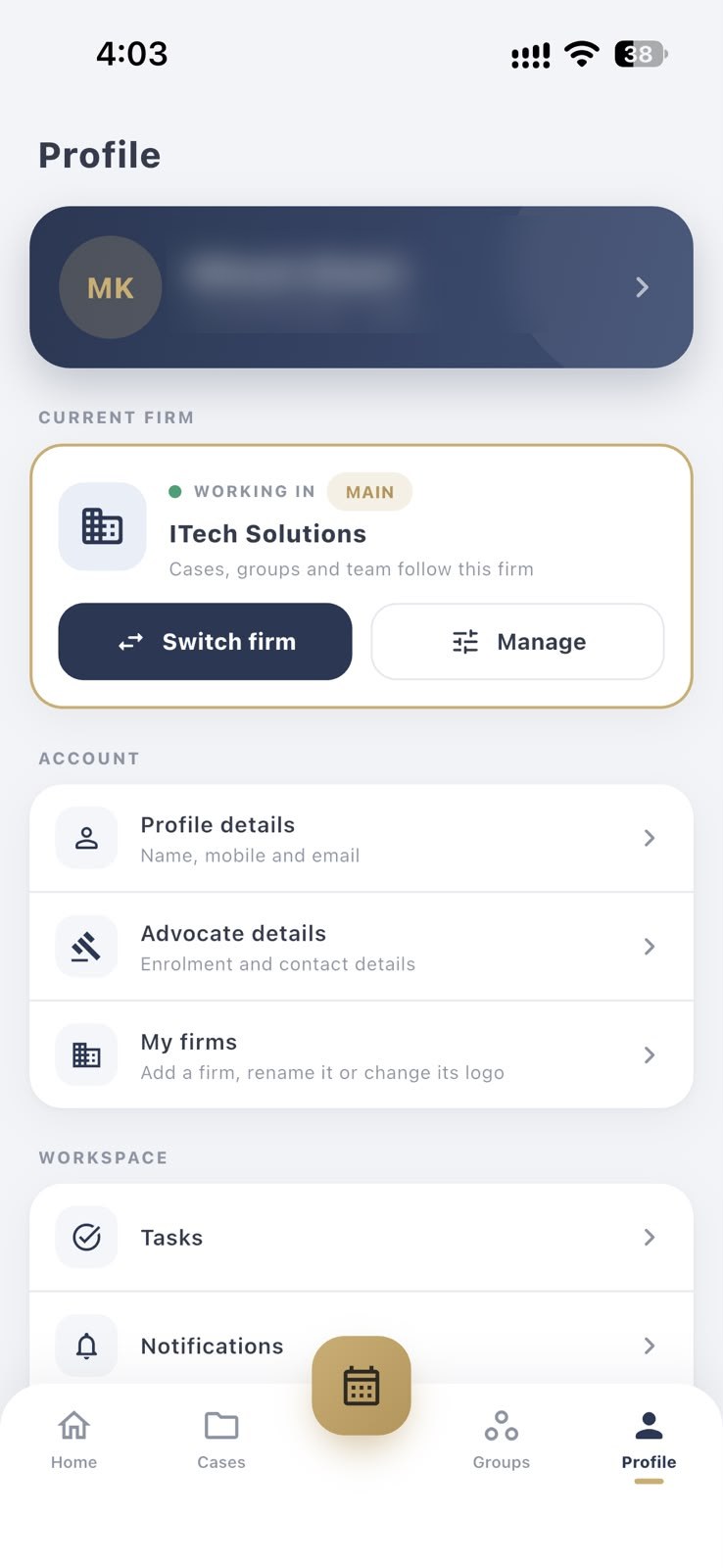
Switch in a tap
Change your current firm from your profile, without logging out.
Many advocates work across more than one practice. Add each firm or chamber as its own workspace and switch between them in a tap, with no second login and no mixing of matters.
Your profile always shows which firm you are working in. The cases, groups and team you see follow that firm, so one practice's matters stay apart from another's.
You can add a firm, rename it or change its logo from My Firms, so that each workspace is easy to recognise.
Change your current firm from your profile, without logging out.
Cases, groups and team members follow the firm you are working in.
Add a firm, rename it, or give it its own logo.
Open My Firms in your profile and add your firm's details.
Add that firm's team, cases and groups.
Use Switch firm to move between your workspaces.
Open your profile and tap Switch firm. The cases, groups and team you see then follow the selected firm.
The number of firms available depends on your account's plan. Your dashboard shows how many you are using.
Each firm is its own workspace, so its cases, groups and team stay with that firm.
Yes. You can rename a firm or change its logo under My Firms.
Add juniors and co-counsel, create groups, and share only the cases each person works on.
Keep court, case number, parties, status and priority together, and find any matter in seconds.
Your diary stays in sync across supported devices, so changing phones does not mean starting again.
Sign in with your mobile number and a one-time password. There is no password to remember.
Free to download for Android and iPhone.