 The Advocate Diary
Light
A clean, bright appearance that is easy to read in daylight.
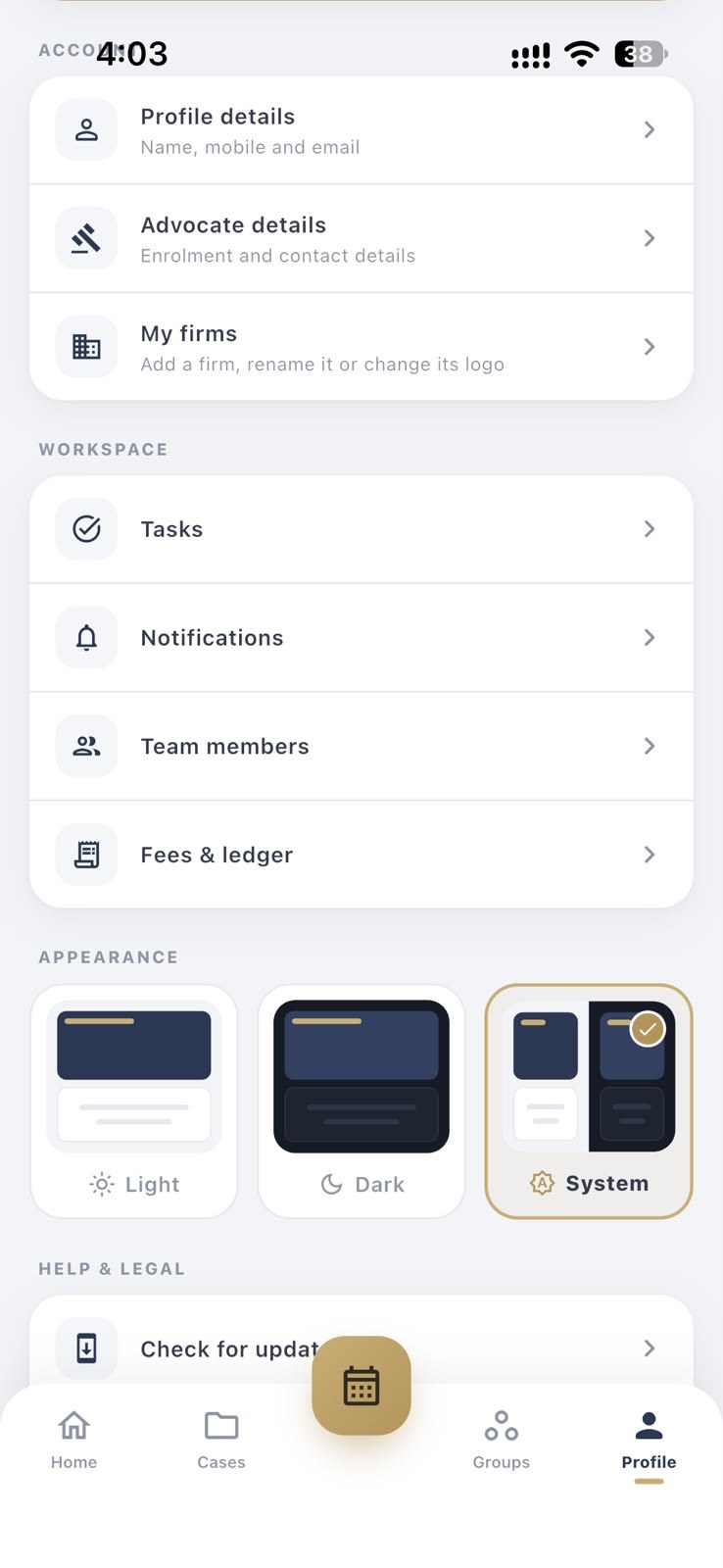
You may open your diary in a bright courtroom corridor at noon and again in a dim room at midnight. Choose Light, Dark or System, whichever is most comfortable for you.
An app you open dozens of times a day should be easy on your eyes. Light mode is clear in bright conditions, while dark mode is gentler for late-night preparation.
System mode follows your phone's own setting, so the app changes appearance along with the rest of your device.
A clean, bright appearance that is easy to read in daylight.
A darker screen for evening reading and late-night preparation.
Follows your phone's appearance setting automatically.
Tap Profile in the bottom navigation.
Scroll to the Appearance section.
Tap Light, Dark or System.
Go to Profile, scroll to Appearance and choose Dark.
It follows the light or dark setting on your phone.
No. It changes only how the app looks.
Yes. The appearance options are part of the app's settings.
Week and month views of every hearing, with time, court hall, remarks and the next date for each case.
See only your matters for the day, in one daily agenda you can check before leaving for court.
Keep court, case number, parties, status and priority together, and find any matter in seconds.
Sign in with your mobile number and a one-time password. There is no password to remember.
Free to download for Android and iPhone.